


Main Interface
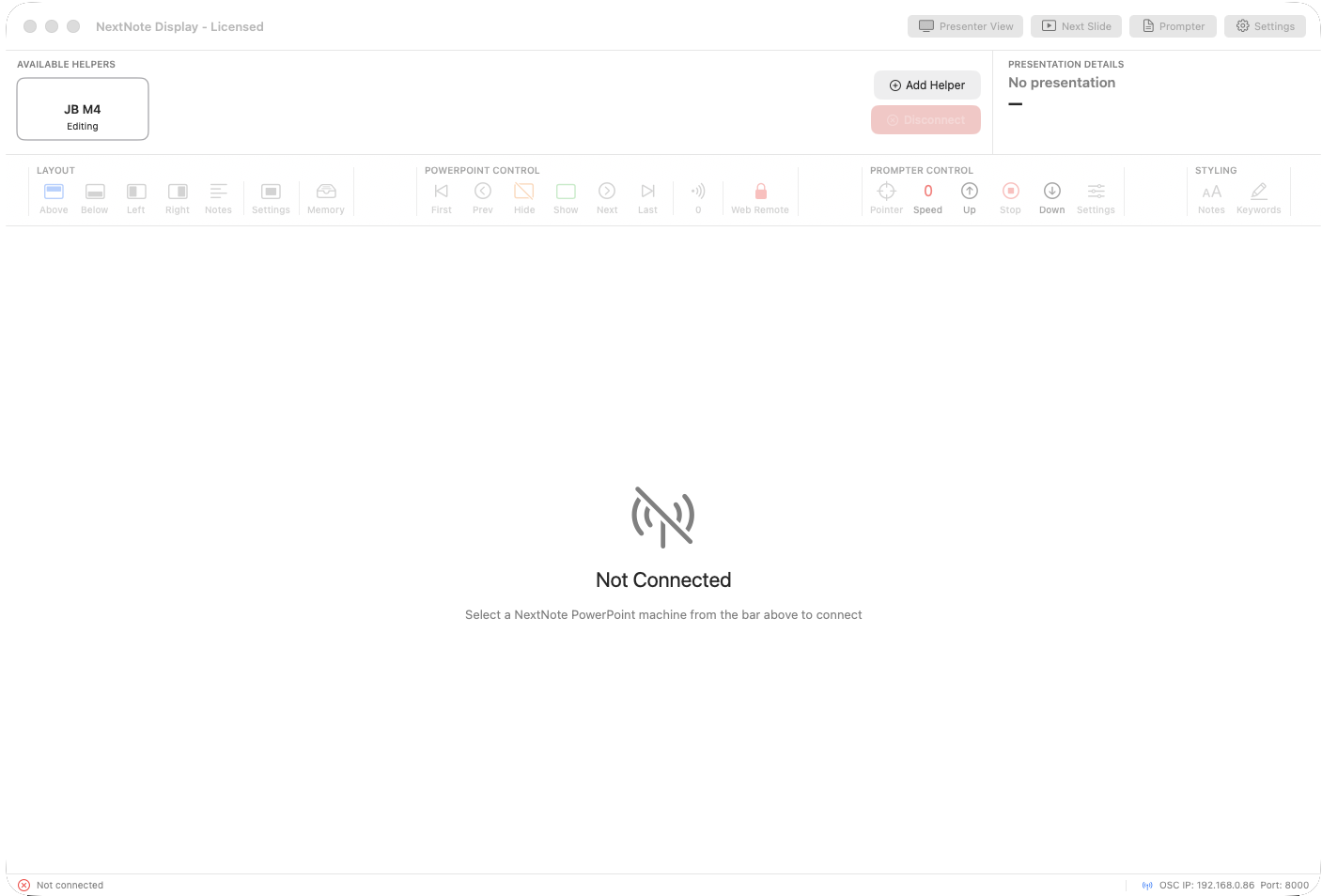
Available Helpers Bar
The Available Helpers bar lists PowerPoint and Google Slides Helpers discovered on the local network. Each Helper appears as a card showing its machine name and current state. Click a card to select it and display its presentation content.
Use Add Helper to manually add a Helper by IP address if automatic discovery is unavailable. Disconnect stops using the selected Helper and cancels any active retry. It does not permanently remove a Bonjour-discovered Helper.
Presentation Details Panel
The right-hand panel shows the presentation name and current slide position. Additional information, such as builds or media timing, is shown when available.
The Toolbar
The toolbar is divided into four labelled sections, each controlling a different aspect of the system:

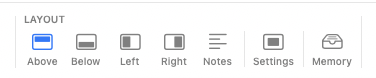
Controls slide and notes layout, notes text styling, keyword highlights and presenter-timer options. Use Settings to refine current and next-slide visibility, alignment and the information strip.

Memory opens Saved Layouts for recalling and editing speaker setups.
Timer opens Timer Controls for countdown clock control.

Sends First, Previous, Blank, Next and Last commands to selected Helpers. The target button chooses which Helpers receive commands, while Remote enables or disables RemoteView control during a presentation.
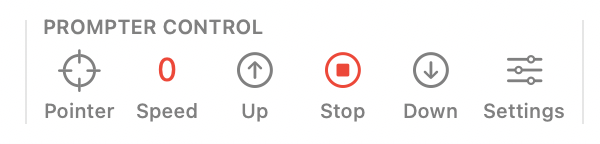
Controls the teleprompter: pointer, text visibility, speed, Up, Stop, Down and settings.
Main Content Area
The central area shows the presenter view configuration for the selected layout. Once connected to a helper and a presentation is running, this area updates in real time each time the presenter advances a slide.
Output Windows
Use the toolbar buttons at the top-right to open dedicated output windows:
| Button | Purpose |
|---|---|
| Presenter View | Mirrors the main operator layout. Drag to a second monitor and make full screen, or select the connected external display from the list. |
| Next Slide | Full-screen preview of the upcoming slide. Ideal for a confidence monitor. |
| Notes | A Notes only view that matches the operator view. |
| Presenter Timer | Opens the presenter timer output. Configuate and design in Timer styling. |