


Google Slides Helper
Connect Google Slides presentations to NextNote Display on your local network.
Sign In to Google
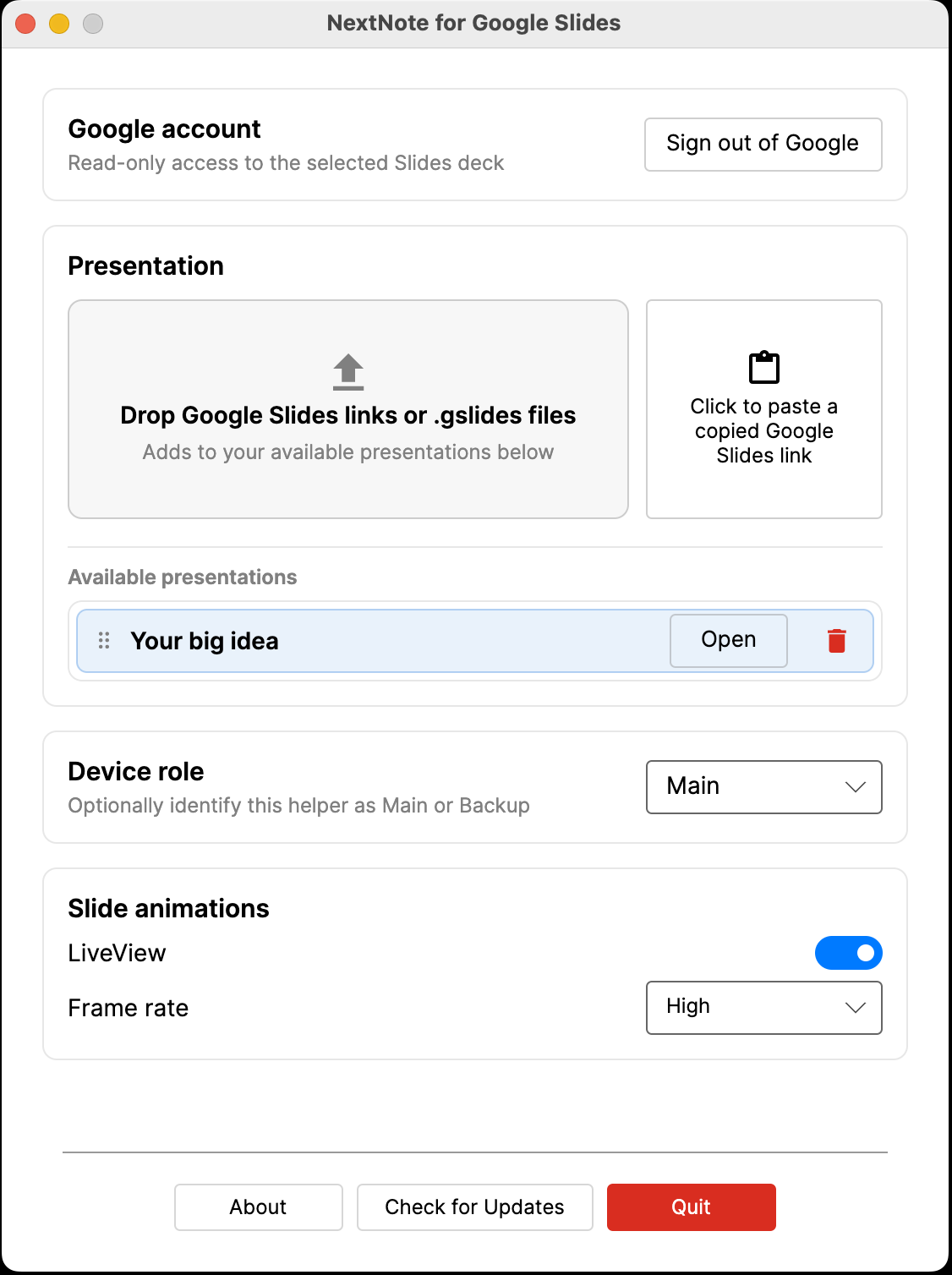
Launch NextNote for Google Slides and select Sign in to Google. Sign in with an account that can access the presentation. Google's Picker grants NextNote per-file access only to presentations you confirm. NextNote uses the Google access only to read and never edit, create or delete presentations.
Add a Presentation
Add presentations to the Helper using any of these methods:
- Copy a Google Slides link and click the paste link button.
- Drag a Google Slides link into the Helper window.
- Drag a
.gslidesfile into the Helper window.
The presentation is added to Available presentations so it can be opened again without pasting the link each time.
Open and Present
Device and Network Adapter
After signing in, the Device section shows the presentation machine's name and the IP address or addresses currently advertised to NextNote Display. The Network Adapter selector controls which network connection is used.
| Setting | Behaviour |
|---|---|
| Auto | Uses active wired network adapters first. Wi-Fi is used only when no wired adapter is available. |
| Named adapter | Uses only the selected adapter and its displayed IP address. |
Select a named adapter when the machine is connected to more than one network and NextNote traffic must stay on a particular connection. If that adapter becomes unavailable, the Helper pauses discovery until it returns or another adapter is selected.
Room
Room filtering is intended for large events where several rooms share the same network. Turn Room on, enter the room name and click Set.
In each room's Display app, open Settings, enable Room Filter and select the same room name. That Display will then list only Helpers assigned to that room. Turning Room off on the Helper removes its assignment; selecting All Rooms in Display shows every Helper.
Device Role
Use Device role to identify the Helper as Main or Backup when working with redundant presentation machines. Leave it as Not set when no role is required.
Slide Animations
Enable LiveView to stream slide transitions to connected Displays. Select High for the smoothest output or Low to reduce network and processing load. When LiveView is off, slides and speaker notes continue to update as still images.