

Notes Formatting
Customise the appearance of speaker notes and define keyword highlights for presenter cues.
Text
Adjust how speaker notes are displayed in the main content area and all output windows.
Font
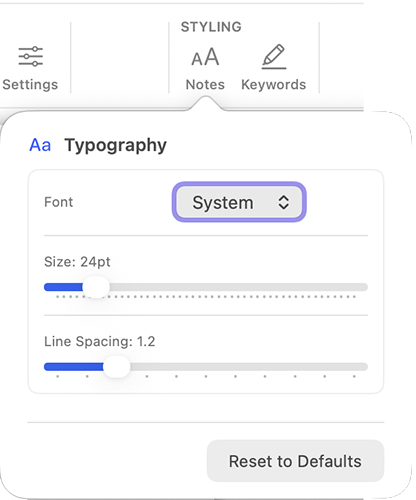
Choose the typeface used for speaker notes. System uses the platform default; other options include common web-safe fonts.
Size
Set the base font size in points. Larger sizes improve readability on confidence monitors and remote displays.
Line Spacing
Control the vertical space between lines of text. Increased spacing improves legibility, especially for rapid reading during live events.
Reset Text Settings
Click Reset to Defaults to restore all typography settings to factory defaults.
Keywords
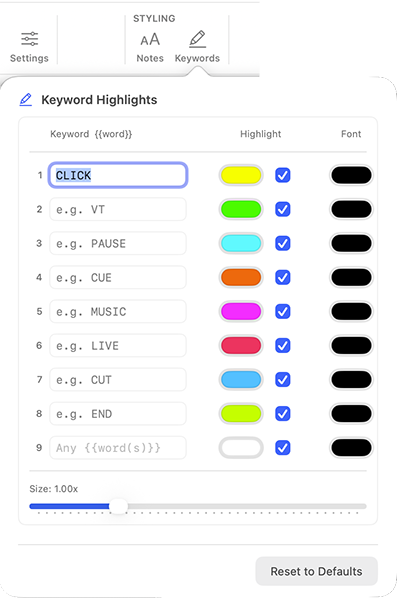
Define custom keywords that appear in your speaker notes enclosed in double curly braces {{KEYWORD}}. Each keyword can be highlighted with a colour and/or styled with a custom font, making presenter cues stand out at a glance.
Adding Keywords
Type a keyword (e.g. CLICK, VT, BUILD) in the input field and press Enter. The keyword appears in the list below.
Highlight and Font Colour
For each keyword, choose a highlight colour or font colour. The highlight can be hidden in favour of a coloured font. All colours can be customised as required.
Size Scaling
Use the size slider to increase the overall scale of keywords as a percentage of the standard notes size. This makes cues stand out more prominently from regular notes — ideal for quick scanning during live events.
Reset Keywords
Click Reset to Defaults to remove all custom keywords and restore the default list.