

Layout Defaults
Choose where slide content and speaker notes appear, and configure the default position for Current Slide and Next Slide panels.
Layout Modes
The LAYOUT section of the toolbar contains five default layout buttons. Clicking any of the buttons will switch the main content area to that arrangement instantly. A user can then drag dividers in the layout to change the ratio of notes / slides or current slide and next slide.
| Button | Layout | Best For |
|---|---|---|
| Above | Slides above, notes below | A traditional layout that all presenters are familiar with. |
| Below | Notes above, slides below | Reversed preference for reading notes first. |
| Left | Slides on left, notes on right | Ideal for when there is a script rather than bullet points. |
| Right | Slides on right, notes on left | Notes-first reading preference. |
| Notes | Notes only, no slides | A notes only view for use as a Prompter-only display. |
Slides Configuration
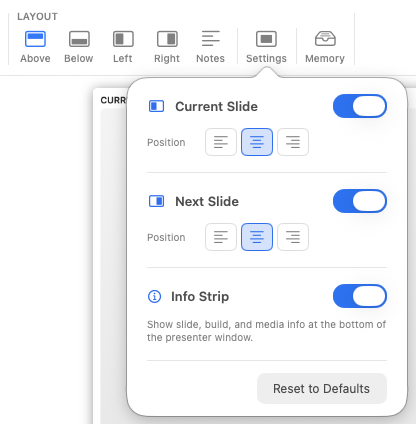
Use the Settings button in the Layout section to open the additional configuration options:
Current Slide
Toggle whether the current slide is shown in the layout. When enabled, use the square position grid to choose where it sits in its area. Select the matching square for the top, middle or bottom row and the left, centre or right column.
Next Slide
Toggle whether the next slide preview is shown alongside the current slide. Set its position independently with the same square grid.
Info Strip
Toggle whether the info strip is shown at the bottom of the view. This bar shows information about current slide number, build number along with media names and countdowns.
Reset to Defaults
Click Reset to Defaults at the bottom of the popover to restore all layout options for the current mode to their factory settings.