


Teleprompter
Smooth auto-scrolling of speaker notes with adjustable speed and a visual position pointer — controlled from the operator interface, keyboard, or OSC.
Overview
The Teleprompter enables automatic scrolling of speaker notes at a controllable speed. Use it to guide presenters through their notes or script during a live presentation. The operator controls scroll speed in real time and can instantly pause or resume scrolling from the Display interface or via keyboard shortcuts.
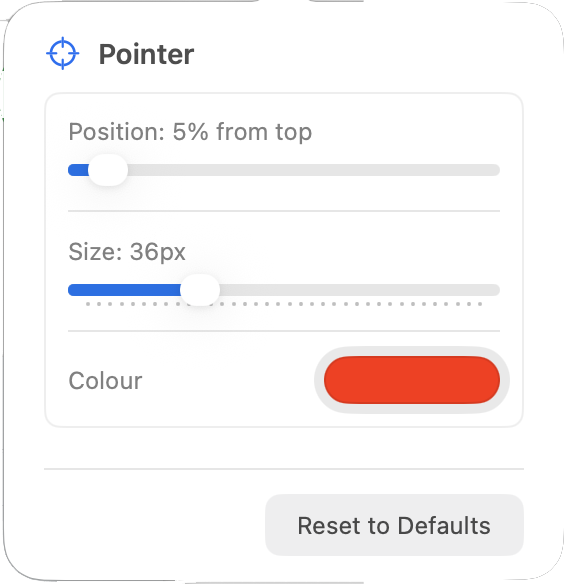
Pointer Settings
Click the Settings button in the Teleprompter Control section to open the Pointer Settings popout. Here you can customise the appearance and behaviour of the position pointer:
- Colour — Choose the pointer colour for visibility against your notes background.
- Position — Set where on screen the pointer appears (top, middle, or bottom of the visible area).
- Size — Adjust pointer thickness or height for prominence.
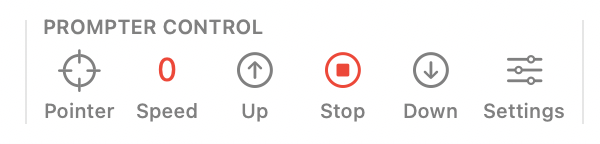
Prompter Controls
| Control | Action |
|---|---|
| Scroll Up | Increase scroll speed (incremental steps). Press multiple times to gradually speed up. |
| Scroll Down | Decrease scroll speed. Pressing below zero speed will scroll backward through notes. |
| Stop | Pause scrolling instantly. Notes remain at their current position. |
| Pointer | Toggle the visual marker on/off showing where the presenter should be reading. |
| Hide | Hide or show the prompter text without changing the notes or the scroll position. |
Using the Teleprompter During a Show
Before the presenter begins speaking, position the notes at the top and set the pointer to where they will start reading. When they begin, press Scroll Down once or twice to start scrolling at a comfortable speed. Adjust speed in real time with additional Up or Down presses. Press Stop instantly if the presenter pauses or goes off-script — the notes hold their position.
When a new slide loads, the notes automatically reset to the top of the new slide's notes and scrolling pauses. The operator does not need to manually reposition between slides.
Keyboard Shortcuts
| Key | Action |
|---|---|
L | Increase scroll speed |
J | Decrease scroll speed |
K | Stop |