


Memory
Save complete layout snapshots as named memory slots and recall them instantly — from the interface, keyboard, or via OSC.
Saving a Memory Slot
What a Memory Slot Saves
Each named memory slot captures the complete state of the operator interface at the moment it is saved:
- Layout mode, divider positions and slide visibility
- Current and Next Slide alignment
- Font, size and line spacing settings
- Teleprompter speed and pointer settings
- Speaker name, access assignment and optional timer duration
Recalling a Memory Slot
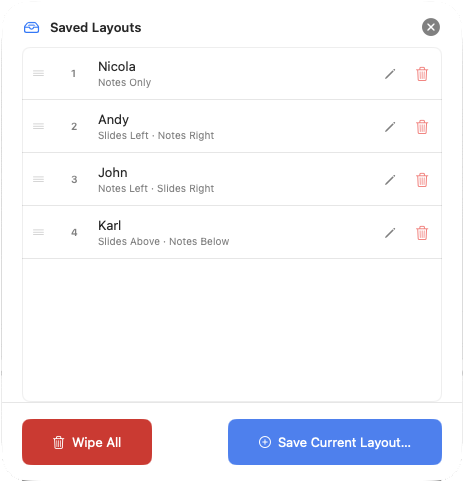
Click any slot in the Saved Layouts list to recall it immediately. All layout settings switch instantly — no transition delay.
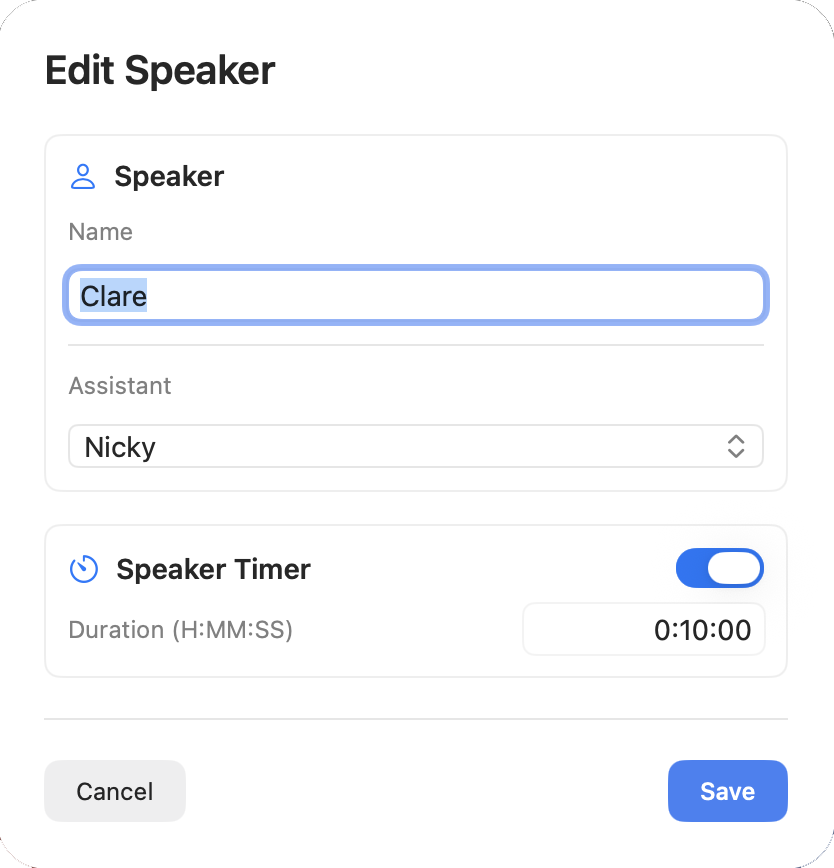
Use the edit control to update the speaker details and, where required, enable a speaker timer and enter its duration. Timer appearance and output formatting are configured separately in Timer Designer and Timer settings.
Re-ordering, Renaming and Deleting Slots
To change the order, drag a row — including its handle on the left — to the new location. Select the pencil icon to rename a memory or the bin icon to delete it.
Keyboard Shortcuts
Recall any of the 20 memory positions using the Control key and a number. The keyboard numberpad is ideal for this.
| Shortcut | Memory position |
|---|---|
Ctrl + 1 to Ctrl + 9 | Positions 1 to 9 |
Ctrl + 0 | Position 10 |
Ctrl + Shift + 1 to Ctrl + Shift + 9 | Positions 11 to 19 |
Ctrl + Shift + 0 | Position 20 |
OSC Recall
Every memory slot can be triggered via OSC, making it possible to recall layouts from a Stream Deck or any OSC controller during a live event. Slot numbering starts at 1 and matches the order they appear in the Memory sheet.