


PowerPoint Helper
Connect PowerPoint to NextNote Display and control NextNote from the PowerPoint ribbon.
Menu Bar / System Tray
The PowerPoint Helper runs as a background agent. On Mac it appears in the menu bar; on Windows it appears in the system tray. Click the icon to open the Helper menu.
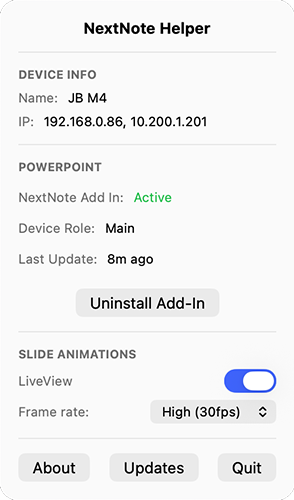
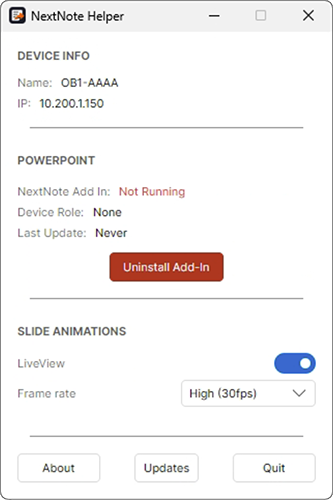
Helper Menu
Device Info
Shows the presentation machine's name and the IP address currently advertised to NextNote Display.
NextNote Add-In Status
| State | Meaning |
|---|---|
| Not Running | The Helper is running but PowerPoint is closed. |
| Stopped | PowerPoint is open but NextNote is stopped in the ribbon. |
| Active | NextNote is started in PowerPoint and broadcasting to the network. |
| Device Role | The helper's role either None, Main or backup. |
This section also provides the Install / Uninstall Add-In control.
Network Adapter
The Network Adapter selector controls which network connection the Helper advertises and uses for Display connections.
| Setting | Behaviour |
|---|---|
| Auto | Uses active wired network adapters first. Wi-Fi is used only when no wired adapter is available. |
| Named adapter | Uses only the selected adapter and its displayed IP address. |
Select a named adapter when the presentation machine is connected to more than one network and NextNote traffic must stay on a particular connection, such as a dedicated show network. If that adapter becomes unavailable, the Helper pauses discovery until it returns or another adapter is selected.
Room
Room filtering is intended for large events where several rooms share the same network. Turn Room on, enter the room name and click Set.
In each room's Display app, open Settings, enable Room Filter and select the same room name. That Display will then list only Helpers assigned to that room. Turning Room off on the Helper removes its assignment; selecting All Rooms in Display shows every Helper.
Slide Animations
Enable LiveView to stream slide transitions to connected Displays. Select High for the smoothest output or Low to reduce network and processing load. When LiveView is off, slides and speaker notes continue to update as still images.
The NextNote Ribbon Tab
Once the add-in is installed, a NextNote tab appears in the PowerPoint ribbon. This is the primary interface for controlling NextNote from within PowerPoint.
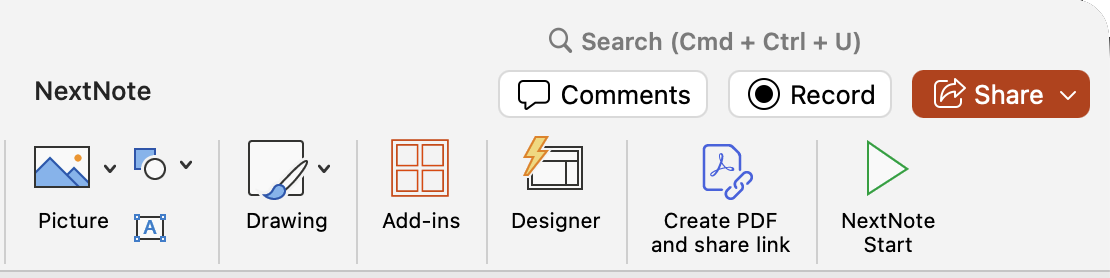
Enabling Macros
NextNote uses PowerPoint's macro system to communicate with the Helper. When you open a presentation for the first time after installation, PowerPoint may show a security warning asking you to enable macros.
Starting NextNote
Device Role
NextNote supports running multiple PowerPoint machines simultaneously. Each machine can be assigned a role to clarify its function in a multi-machine setup.
| Role | Description |
|---|---|
| None | Default. The machine participates but has no specific role designation. |
| Main | The primary PowerPoint machine. Display clients treat this as the primary source. |
| Backup | A standby machine. Used with Auto Failover in the Display app. |
To set the role, go to the NextNote menu in the ribbon and select Device, then choose your role.
Stopping NextNote
Click Stop in the NextNote ribbon to end broadcasting. The Helper will remain running in the background, ready for the next session but you will need to restart NextNote from the ribbon to publish to the display.